
If you’re trying to integrate smart lights with voice assistants, you’re likely looking for a setup that’s seamless, reliable, and easy to manage. The promise of hands-free control, customized lighting scenes, and a fully connected home is exciting—but getting everything to work together smoothly can feel overwhelming.
This guide is designed to simplify the process. We’ll walk you through compatible devices, essential setup steps, common integration mistakes, and practical tips to ensure your lighting responds instantly to your voice commands. Whether you’re new to smart home tech or refining an existing system, you’ll find clear, actionable guidance tailored to real-world use.
Our insights are based on hands-on testing of popular smart lighting systems, in-depth research into automation protocols, and continuous monitoring of evolving home technology trends. By the end, you’ll know exactly how to connect your devices, optimize performance, and create a lighting experience that truly works for your connected home.
Unlock Hands-Free Lighting: Your Guide to a Voice-Controlled Home
Imagine walking into your living room and simply saying, “Lights on,” as a warm glow spills across the walls. No tapping, no swiping—just the soft click of bulbs responding instantly. If your devices feel disconnected, you’re not alone. Many people assume setup should be automatic (it’s not), but with a few guided steps, you can integrate smart lights with voice assistants seamlessly.
First, connect each bulb through its native app. Next, link that app to Alexa, Google Assistant, or Siri. Finally, create routines—like dimmed evening lighting that feels calm and cinematic. In minutes, your home listens—and responds.
The Pre-Flight Checklist: What You Need for Smart Light Integration
Before you integrate smart lights with voice assistants, make sure your setup covers four essentials.
1. Compatible Smart Lights
There are two main types: Wi‑Fi direct bulbs (like Wyze or LIFX) that connect straight to your router, and hub-based systems (like Philips Hue) that require a central bridge. Wi‑Fi bulbs are simpler to install, while hub systems often offer stronger reliability and expanded automation. Always confirm compatibility with Alexa, Google Assistant, or Siri before buying—not all bulbs speak every “language.”
2. A Voice-Activated Device
An Amazon Echo, Google Nest, or Apple HomePod acts as your command center, translating your voice into action (think of it as mission control for your living room).
3. The Manufacturer’s App
Initial setup, firmware updates, and room naming happen here. Proper naming improves voice accuracy.
4. A Stable Wi‑Fi Network
Most devices rely on 2.4 GHz Wi‑Fi for broader range and better wall penetration. If lights drop offline, your router settings are the first place to check.
The Universal Connection Process: Linking Lights to Voice Assistants
“Why won’t it just listen to me?” my friend groaned, staring at a perfectly installed smart bulb that stubbornly refused to respond. The truth is, most smart lighting issues aren’t about the bulb—they’re about the connection process.
To integrate smart lights with voice assistants, you need a simple three-step flow. Miss one step, and your futuristic home starts feeling very 2009.
Step 1: Initial Light Setup (In the Native App)
First, install your bulbs or light strips and connect them to Wi‑Fi using the manufacturer’s app. This is where many people rush. Don’t. Name each light logically—“Kitchen Overhead,” “Bedside Lamp,” “Hallway Strip.”
A logical name simply means a clear, descriptive label you’d naturally say out loud. If you name a bulb “Light 1,” you’ll regret it later (trust me).
“I called mine ‘Sparkle Beast,’” someone once told me. Funny? Yes. Practical at 11 p.m.? Not so much.
Step 2: Authorize the Connection (In the Voice Assistant App)
Open Alexa, Google Home, or Apple Home. Go to “Add Device” and search for your light’s brand—Philips Hue, Wyze, LIFX, and so on. You’ll be prompted to sign in with the same credentials you created earlier.
This step is called account linking—a secure authorization process that allows two platforms to share device data (think of it as giving your assistant a backstage pass).
“Why does it need my password again?” people ask. Because without authorization, your assistant literally can’t see your lights.
Step 3: Discover and Organize
After linking, tap “Discover Devices.” The assistant scans your connected account and imports your named lights. Now assign them to rooms like Living Room or Bedroom.
Room grouping enables group control, meaning one command—“Turn off the living room”—controls multiple devices at once.
Pro tip: Test each light individually before grouping. It saves troubleshooting later.
Once done, try it: “Alexa, turn on Kitchen Overhead.”
When it works, you’ll probably say what everyone says: “Okay… that’s actually pretty cool.”
Speaking the Language: Essential Voice Commands for Your New Setup
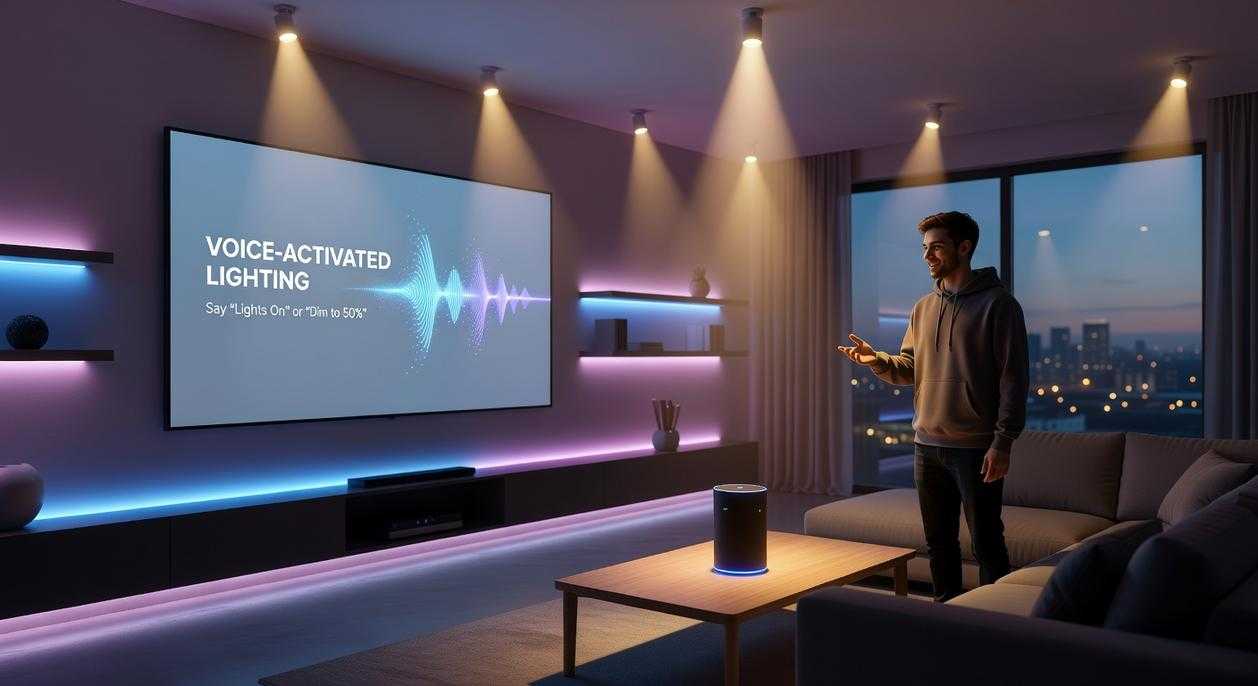
Back in 2019, asking your house to dim the lights still felt a little sci‑fi. Fast forward to today, and after just a week of daily use, most people can’t imagine going back to wall switches (yes, even the stubborn ones).
Start with the Basics
First things first, master simple on/off phrases:
- “Alexa, turn on the living room lights.”
- “Hey Google, turn off all the lights.”
These are foundational commands—the equivalent of learning “hello” in a new language. Voice assistants (software that interprets spoken commands and triggers actions) rely on clear room names, so label devices carefully during setup. Pro tip: Keep room names short and distinct to avoid confusion.
Fine-Tune Brightness
Next, experiment with precision control:
- “Siri, set the dining room lights to 50%.”
- “Alexa, dim the bedroom lights.”
Dimming isn’t just about mood; studies show lower evening light supports better sleep cycles (Harvard Health, 2020).
Play with Color and Temperature
If you integrate smart lights with voice assistants, try:
- “Hey Google, change the office lamp to blue.”
- “Alexa, set the kitchen lights to warm white.”
Color temperature (how warm or cool light appears) affects focus and relaxation—think cool white for productivity, warm tones for winding down.
Control by Group or Room
Finally, assign lights to rooms:
- “Hey Google, turn on the kitchen.”
Group control saves time and feels effortlessly futuristic (like living in a low-budget Iron Man sequel). And as connected homes expand—such as when connecting smart thermostats to multi room systems—consistent naming becomes even more powerful.
Next-Level Automation: Creating Smart Routines and Scenes
Smart homes shine when devices act together. A routine (a preset sequence of automated actions) lets you trigger multiple tasks with one command. For example, say “Movie Night” and your lights dim, shift to warm amber, and the TV powers on. One command vs. three separate apps—convenience wins.
Morning vs. Manual Mode
Consider a “Good Morning” routine. Instead of jolting awake to a blaring alarm, your lights gradually brighten while your assistant shares the weather forecast. Automated sunrise vs. abrupt alarm clock—the difference feels almost cinematic (minus the dramatic soundtrack).
Now compare that with doing everything manually: tapping switches, checking forecasts, adjusting brightness. Efficient? Not exactly.
A “Goodbye” routine works the same way. Saying “Alexa, I’m leaving” can switch off every light at once. Manual double-checking vs. one voice command—energy savings become effortless.
Then there’s geofencing (location-based triggers). Your lights turn on when your phone detects you’ve arrived home. Scheduled timers react to the clock; geofencing reacts to you.
Pro tip: integrate smart lights with voice assistants for seamless control across routines.
Your Home, Your Voice: The Future of Connected Living
You’ve already integrate smart lights with voice assistants and bridged the gap between command and comfort. That’s not a party trick (though it feels like sci‑fi the first time). It’s practical automation.
With hands-free control, scheduled routines, and scene presets, you gain:
- Instant ambiance for movie night or morning focus
- Improved accessibility for mobility or vision challenges
- Energy efficiency through timed shutoffs
Moreover, voice-triggered scenes sync brightness, color temperature, and device groups in seconds. Instead of tapping apps, you simply speak.
So explore your assistant’s routines tab. Test combinations. Refine triggers.
Bring Your Smart Home Together Today
You started this guide because you wanted a clearer, simpler way to make your home smarter without the confusion. Now you understand how connected devices, automation protocols, and seamless integration work together to create a space that’s efficient, responsive, and built around your lifestyle.
The real frustration isn’t a lack of devices — it’s getting them to actually work together. When your systems don’t sync, your “smart” home quickly becomes complicated and time-consuming. But when you integrate smart lights with voice assistants and align your devices under the right automation setup, everything becomes smoother, faster, and more intuitive.
Don’t let disconnected tech slow you down. Get step-by-step guidance, practical integration tips, and expert-backed insights to eliminate guesswork and build a home that truly works for you. Start upgrading your setup today and experience connected living the way it was meant to be.
 Jennifer Burnsivino is the kind of writer who genuinely cannot publish something without checking it twice. Maybe three times. They came to insightful reads through years of hands-on work rather than theory, which means the things they writes about — Insightful Reads, Home Automation Protocols, Smart Interior Innovations, among other areas — are things they has actually tested, questioned, and revised opinions on more than once.
That shows in the work. Jennifer's pieces tend to go a level deeper than most. Not in a way that becomes unreadable, but in a way that makes you realize you'd been missing something important. They has a habit of finding the detail that everybody else glosses over and making it the center of the story — which sounds simple, but takes a rare combination of curiosity and patience to pull off consistently. The writing never feels rushed. It feels like someone who sat with the subject long enough to actually understand it.
Outside of specific topics, what Jennifer cares about most is whether the reader walks away with something useful. Not impressed. Not entertained. Useful. That's a harder bar to clear than it sounds, and they clears it more often than not — which is why readers tend to remember Jennifer's articles long after they've forgotten the headline.
Jennifer Burnsivino is the kind of writer who genuinely cannot publish something without checking it twice. Maybe three times. They came to insightful reads through years of hands-on work rather than theory, which means the things they writes about — Insightful Reads, Home Automation Protocols, Smart Interior Innovations, among other areas — are things they has actually tested, questioned, and revised opinions on more than once.
That shows in the work. Jennifer's pieces tend to go a level deeper than most. Not in a way that becomes unreadable, but in a way that makes you realize you'd been missing something important. They has a habit of finding the detail that everybody else glosses over and making it the center of the story — which sounds simple, but takes a rare combination of curiosity and patience to pull off consistently. The writing never feels rushed. It feels like someone who sat with the subject long enough to actually understand it.
Outside of specific topics, what Jennifer cares about most is whether the reader walks away with something useful. Not impressed. Not entertained. Useful. That's a harder bar to clear than it sounds, and they clears it more often than not — which is why readers tend to remember Jennifer's articles long after they've forgotten the headline.